
Managed Agent Quickstart
Use the Novu CLI to create a managed agent, connect it to Slack, and get a reply in minutes.
This guide walks you through creating a managed agent using the Novu CLI, connecting it to Slack, and sending your first message.
Prerequisites
- Node.js installed on your machine.
- A Novu account (you can create one during the setup flow).
- A Slack workspace where you can install apps.
Authenticate
Press Enter to sign in or create an account. This opens a browser window where you authorize the connection.
When authorizing, Novu Connect requests permission to:
- Read your Novu API key for the selected environment.
- Create and manage agents on your behalf.
- Connect channels to your agent.
Once authorized, return to the terminal. The CLI now has access to your Novu environment.
Create an agent
-
Select + Create a new agent
-
Choose where your agent runs. From the options, select Demo credentials and press Enter. Demo credentials are the fastest way to get started if you don't have an Anthropic API key yet.
-
Describe your agent. Type a description of what you want the agent to do and press Enter.
Novu will generate the agent for you, including its system prompt, tools, MCP servers, and skills based on your description.
-
Review and create the agent. The CLI shows the generated agent for you to review. You can adjust any of the following fields before confirming:
- Name
- Identifier
- System prompt
- Tools
- MCP servers
- Skills
If everything looks good, select Create this agent and press Enter.
If you want to change the description and regenerate, select Regenerate from description and repeat the previous step.
Connect Slack
The CLI prompts you: pick a channel to connect this agent to. Select Slack and press Enter.
Novu will ask you to paste a Slack App Configuration Token. To get one:
- Open https://api.slack.com/apps.
- Scroll to the bottom of the page.
- Under App Configuration Tokens, click Generate Token.
- Copy the access token, it starts with
xoxe.xoxp-. - Paste the token into the terminal and press Enter.
The CLI sends the token to your Novu account once to create the Slack app, then discards it; the token isn't stored.
- Add the app to your workspace. After pasting the token, the CLI prompts you to add the app to your Slack workspace. Press Enter and follow the link to install the bot.
Once installed, your agent is live and listening for messages in Slack.
Send a message
Open Slack, where you'll see a message from your agent. Send it a direct message to get started. You'll then be prompted by the agent to connect your Linear and GitHub MCP servers, once you do, your agent is ready.
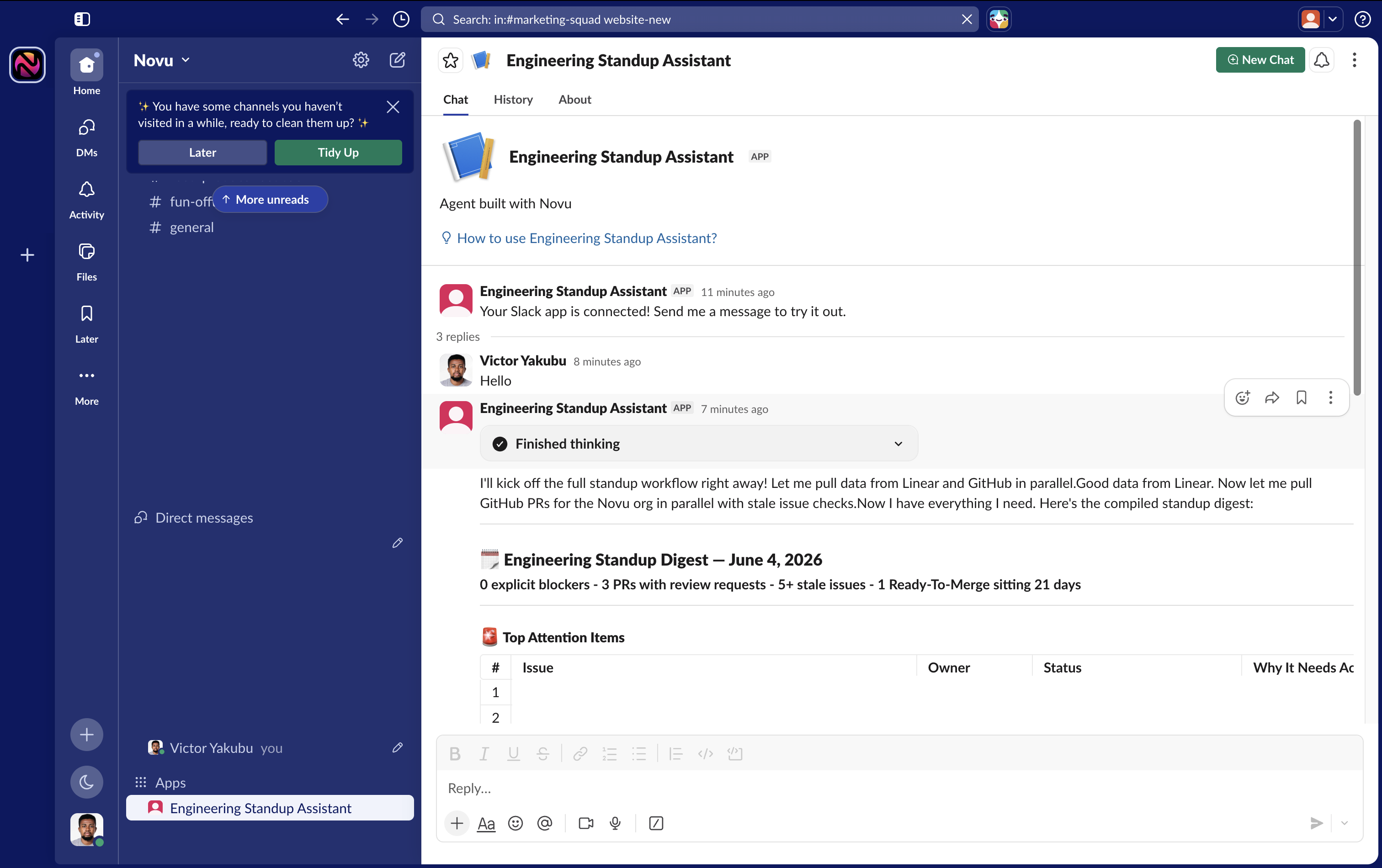 You can also add and interact with the agent in any channel in the workspace.